
Use these lists to:
Allow: always accept email from chosen addresses or domains (the whitelist).
Block: always reject email from chosen addresses or domains (the blacklist).
The lists apply to every email account in your hosting account.
Open the settings
1. Log in to your cPanel account.
2. Scroll to the Email section.
3. Click Spam Filters.
4. Click Show Additional Configuration.
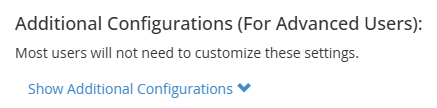
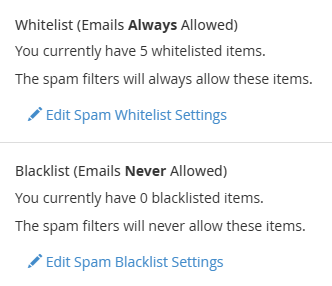
You will now see Whitelist (Emails Always Allowed) and Blacklist (Emails Always Blocked).
Allow a sender
1. Under Whitelist (Emails Always Allowed), click Edit Spam Whitelist Settings.
2. Enter an address, for example person@trustdomain.com. To allow a whole domain, enter *@trustdomain.com.
3. Click Update Whitelist (whitelist_from) to save.
Block a sender
1. Under Blacklist (Emails Always Blocked), click Edit Spam Blacklist Settings.
2. Enter an address, for example spammer@spamdomain.com. To block a whole domain, enter *@spamdomain.com.
3. Click Update Blacklist (blacklist_from) to save.