
Screens may look different on your phone.
1. Go to Settings and tap Add Account.
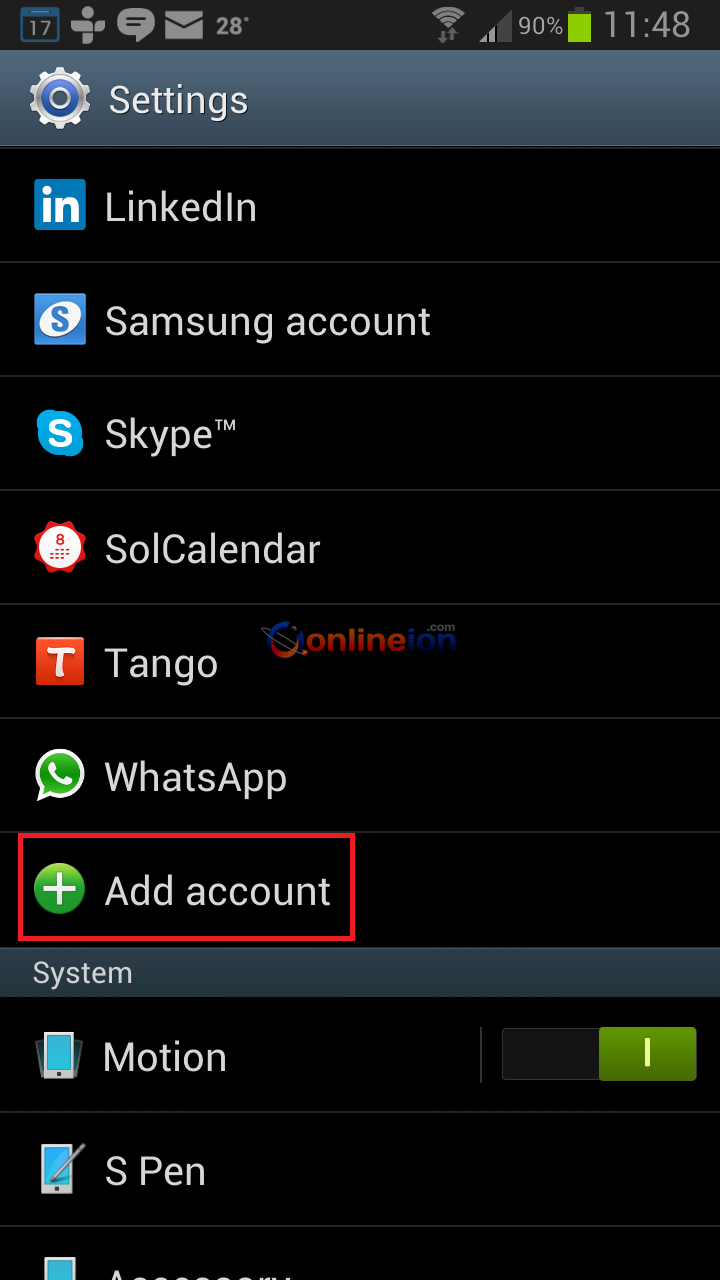
2. Tap Email.

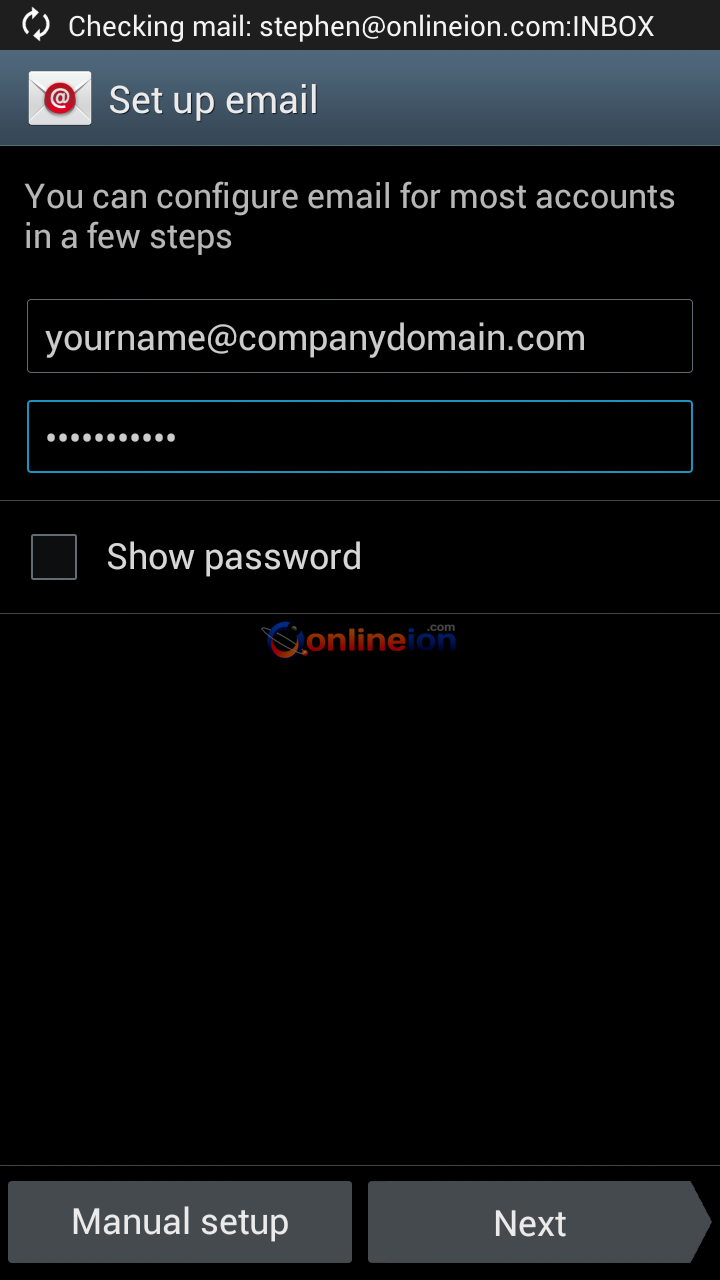
3. Enter your email address and your email password.
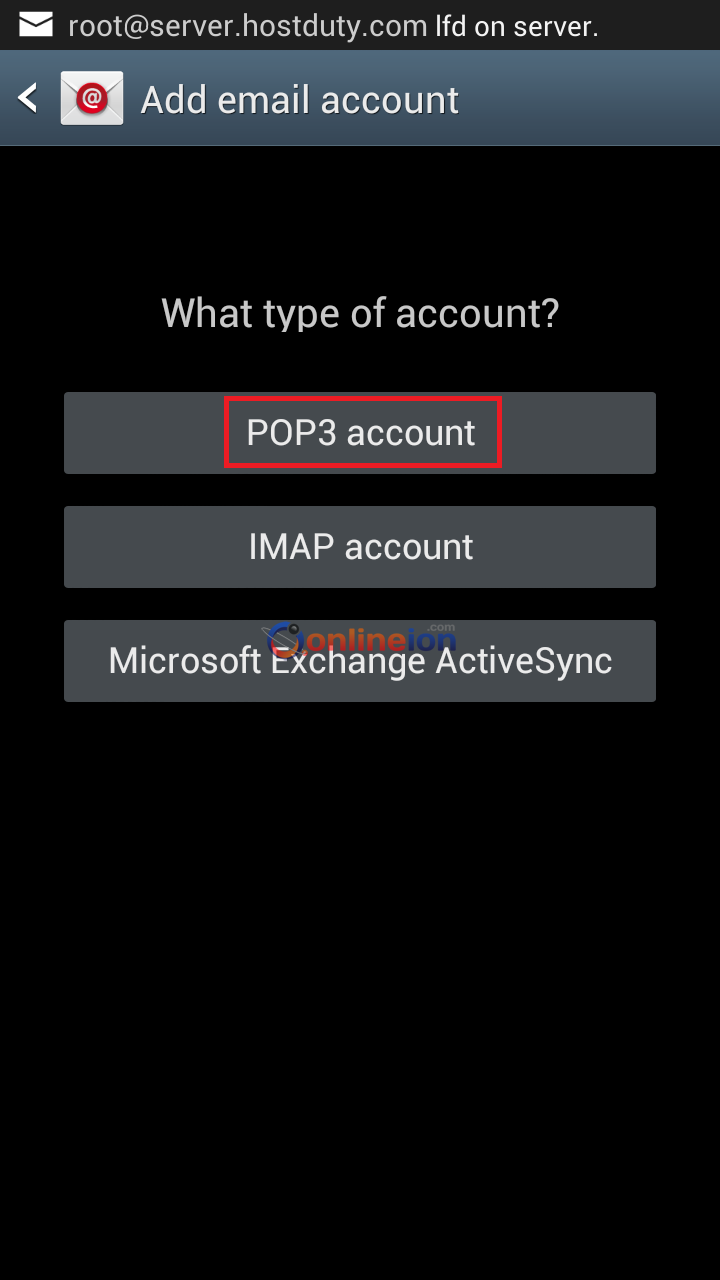
4. Choose POP3 account.
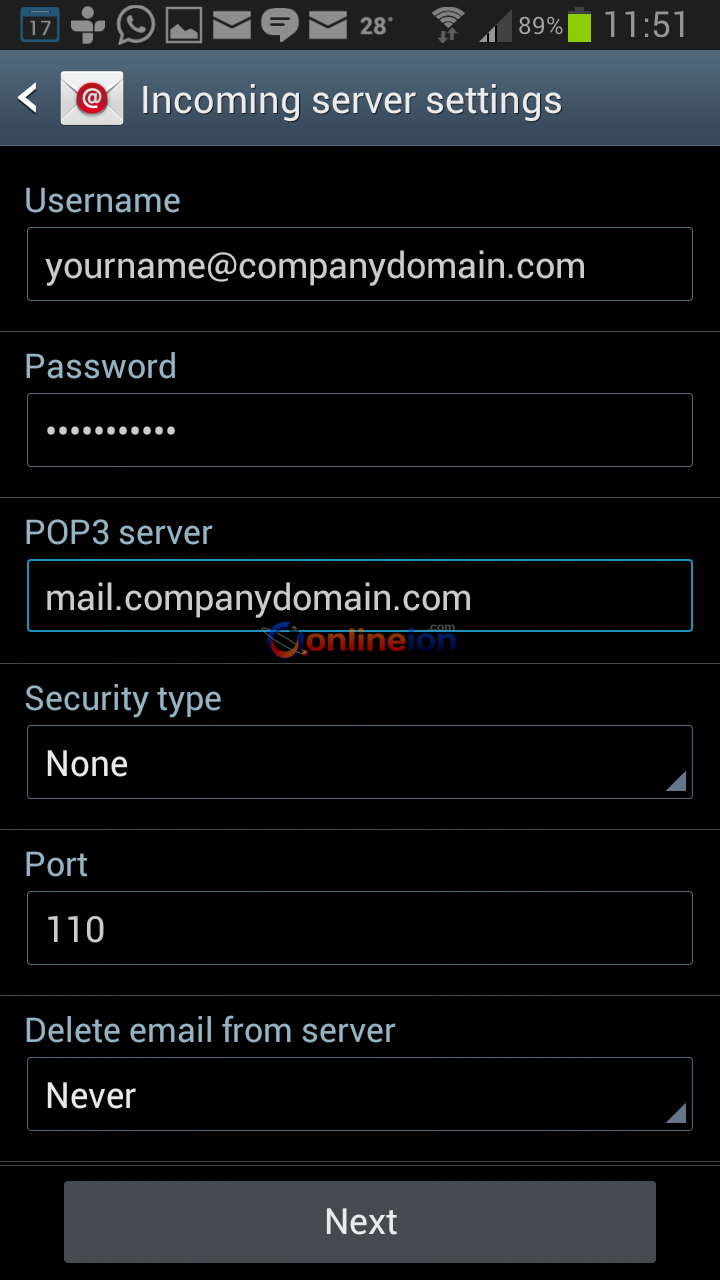
5. Incoming server settings.
Username: your full email address, for example yourname@yourdomain.com
Password: your email password
POP3 server: onlinec1.hostduty.com
Security type: None
Port: 110
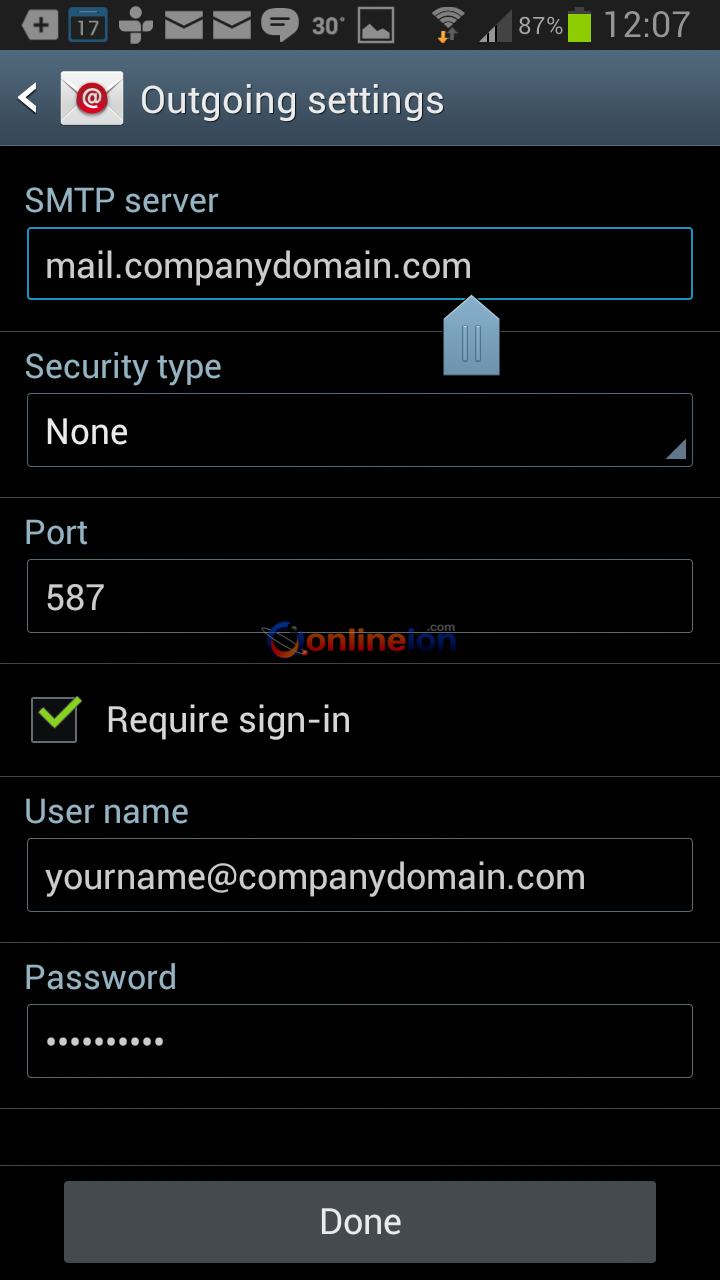
6. Outgoing settings.
SMTP server: onlinec1.hostduty.com
Security type: None
Port: 587 or 25
Require sign in: Yes
Username: your full email address
Password: your email password
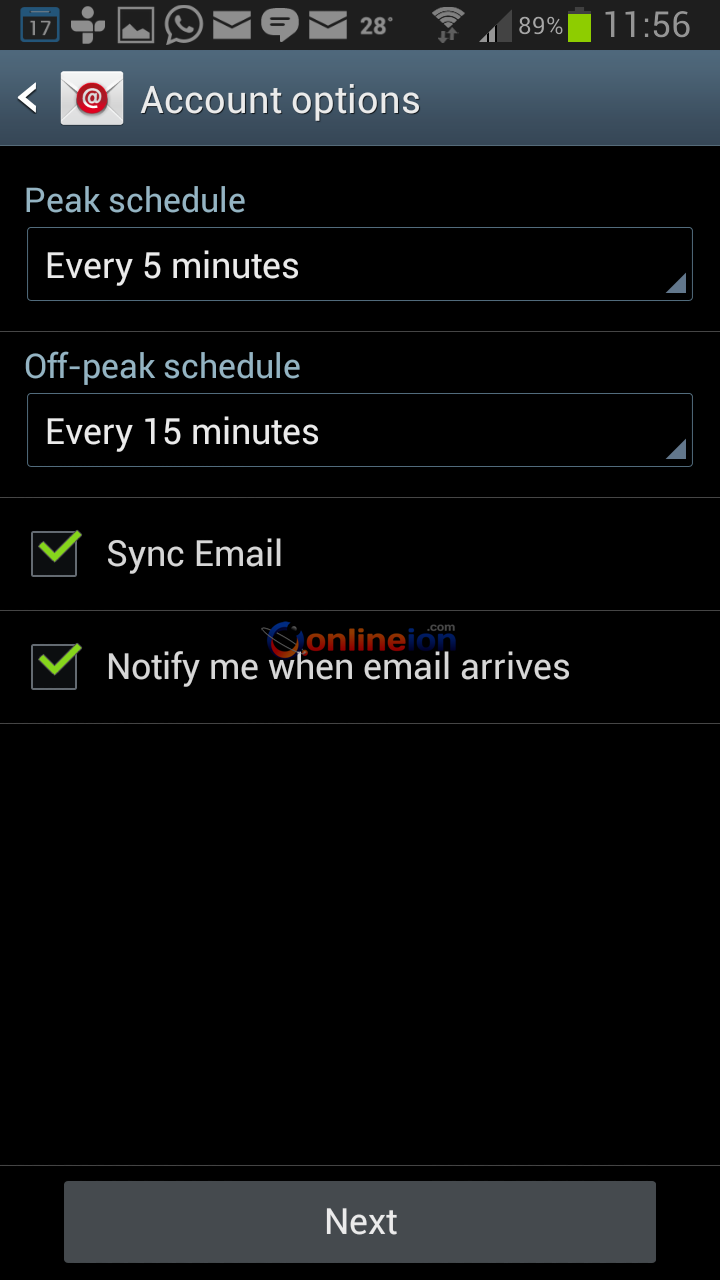
7. Account options. Turn Sync on. Sync must be on for mail to download.
8. Give the account a name, and enter the name to show on outgoing messages.

9. Tap Done. Send and receive a test email to check that it works.
For a secure connection, use SSL with port 995 for incoming and 465 for outgoing.